 Kan Do
Sync & Your Data
Import and Export
Importing from Apple Reminders, backing up everything to a folder, exporting and importing project files, duplicating projects, exporting attachments, and printing notes.
Import from Apple Reminders
Settings ▸ Import copies tasks in from the Reminders app. Titles, notes, links, due dates, and priorities carry over. Completed reminders are skipped, and nothing is removed from Reminders.
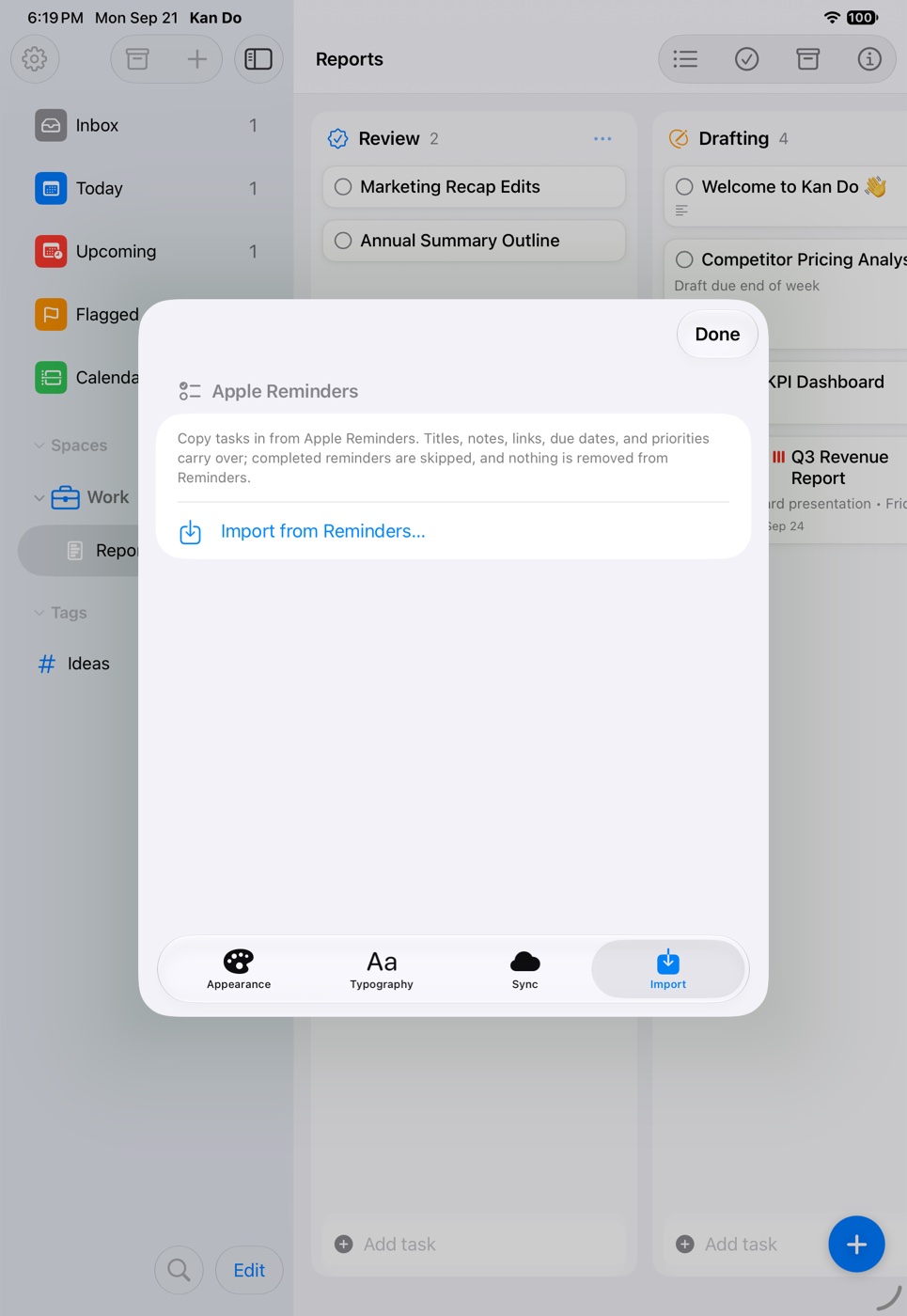
- Tap Import from Reminders…. The first time, the system asks for Reminders access. If you've denied it, the tab points you to the system Settings app under Privacy & Security.
- Import From: choose a Reminders list.
- Import To: choose where the tasks go.
- Inbox: everything lands in the Inbox, outside any project, to sort into boards later.
- Existing Project: pick a Project and a Column, or choose New Column… and type a Column Name.
- New Project: pick a Space (or No Space). Kan Do creates a project named after the Reminders list with everything in an "Imported" column.
- Tap Import. Kan Do reports "Imported N tasks into …" or tells you the list had no incomplete reminders.
What comes over, and what can't:
- Repeating reminders import once, due at their next occurrence.
- Links, including ones pasted into a reminder's notes, go to each task's Links.
- Apple doesn't share a list's sections, subtask grouping, flags, or image attachments with other apps, so images can't come over and every imported task lands in the chosen column.
Reminders are copied, never moved. You can import the same list again later; you'll get duplicates, so it's best done once per list.
Project files
A project file (.kandoproj) is a single file containing one project: its columns, dividers, and every task with notes, cover images, links, dates, repeat rules, per-task Remind Every settings, locations, and subtasks, plus the look of any tags the tasks use. Pictures and files attached to notes are too large for a single file; they travel in a backup folder instead.
Exporting a project
- Right-click or press and hold the project in the sidebar and choose Export….
- On the Mac, File ▸ Export Project… exports the current project.
Choose where to save it. The file is safe to share, email to yourself, or keep as a backup.
Importing a project
- + ▸ Import… at the top of the sidebar, then choose the file. You can pick several files at once.
- On the Mac, File ▸ Import….
Importing creates a new project. Project files carry no internal IDs, so the same file can be imported as many times as you like, which makes them useful as templates: export a project set up the way you like, and import it whenever you start something similar.
Backing up everything
Export All… saves your whole library to a folder you choose: every space and project, your Inbox tasks, all your tags, and the pictures and files attached to notes.
- + ▸ Export All… at the top of the sidebar.
- On the Mac, File ▸ Export All….
To back up just one space, right-click or press and hold the space in the sidebar and choose Export Space….
The result is an ordinary folder named "Kan Do Backup" with the date and time (or the space's name). Inside are one project file per board, an Inbox file, and an Attachments folder. Keep the folder together; you can store it anywhere, including iCloud Drive or an external disk.
Restoring a backup
Choose Import… and pick the backup folder itself, not a file inside it. Kan Do tells you what the folder holds and asks before adding anything.
Importing a backup adds everything as new copies. Nothing you already have is replaced or merged, so importing a backup of things that are still in the app creates duplicates. It's meant for getting data back after it's gone, or moving it to a fresh setup. Any single project file inside the folder can also be imported on its own, without its attachments.
If you only need one deleted task back, look in Recently Deleted first.
Duplicating a project
Duplicate… in the project's context menu asks for a name and makes a full copy inside the app, with every column, divider, and task. It's the quickest template mechanism when you don't need a file.
Exporting attachments
Export Attachments… in a task's context menu writes the task's cover image and note attachments to a folder (Mac) or the share sheet (iPhone, iPad, Vision Pro). With several tasks selected, each file is prefixed with its task's name. A task with no attachments says so.
Printing a note
Print Note… (⇧⌘P on the Mac, or the Print Note tool in the editor bar) prints the open task's note, headings and formatting included.
Copying task links
Copy Link on any task puts a kando://task/… link on the clipboard that reopens the task on any of your devices. It's not an export, but it's the right way to reference a task from another app. See Spotlight and Links.
Getting data in from anywhere else
- The share sheet on iPhone and iPad saves web pages, text, images, and files into a new or existing task. See Share Sheet.
- Shortcuts can create tasks from any source, including CSV or a spreadsheet, with the Add Task action. See Shortcuts.
- An AI assistant connected through MCP can create whole boards from a description. See AI Assistants (MCP).
What Kan Do doesn't export
There's no CSV, Markdown, or OPML export. For plain text, copy from a note, or ask a connected AI assistant to read your tasks and write them out in whatever format you need.
Before a big reorganization, choose Export All…. The backup folder is a complete, restorable copy of everything, attachments included.