
Drop a video,
get animated captions.
A free Mac app that listens to your video with Apple's on-device speech engine and burns in word-by-word captions in the style you pick. Edit the text, drag the captions where you want them, and export a new video. Nothing is uploaded anywhere.
MacFree
Free · Version 1.0 · 3.2 MB · Requires macOS 26 or later
Features
Captions that move with the words.
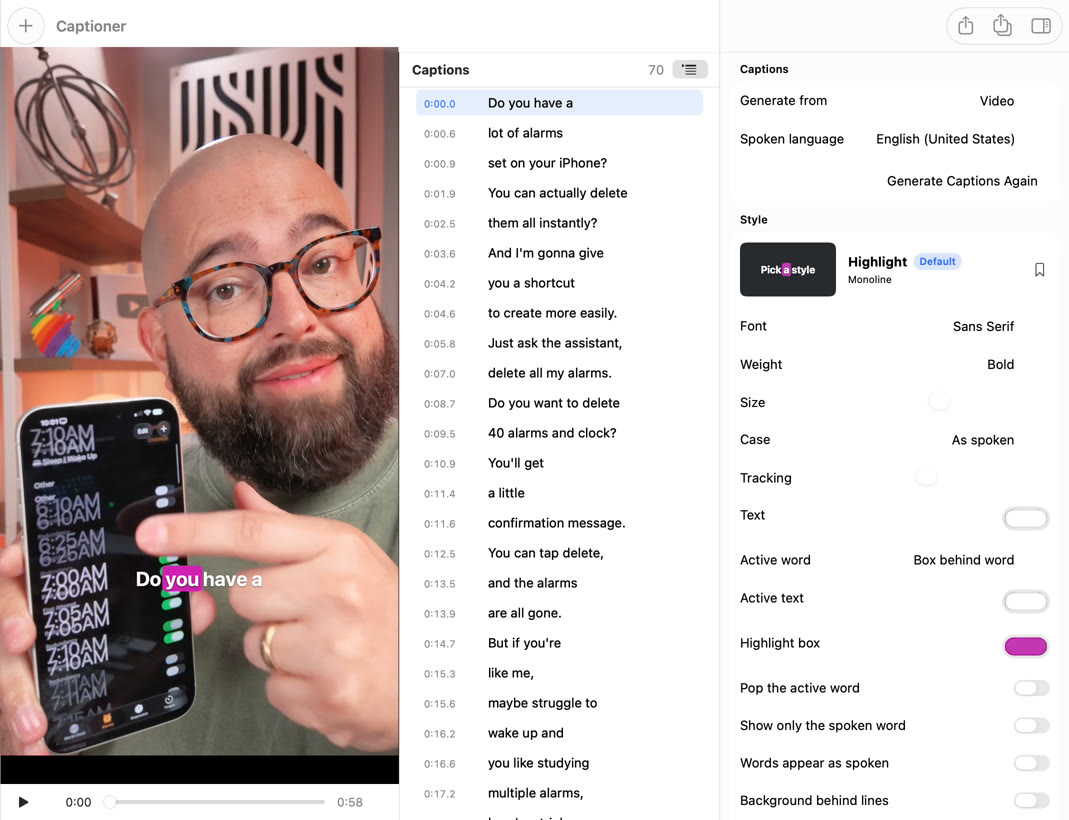
Captioner keeps the moment every word was spoken, so the word being said lights up as it is said. The same renderer draws the preview and the export, so what you see in the window is exactly what ends up in the file.
Fifteen styles, all yours to change
Highlight boxes, outlines, karaoke colors, pops, typewriter reveals, boxed subtitles and single-word styles that show only the spoken word. Pick one, then change the font, size, case and every color.
Any font
San Francisco in sans serif, rounded, serif and monospaced designs, any font installed on your Mac, or a TrueType or OpenType file you add. Save a styled preset with your fonts and colors and make it the default for every new video.
Put them where you want
Drag the caption in the preview, or set a vertical position and left, center or right alignment. Vertical 9:16 shorts and 16:9 videos each remember their own spot.
Fix the words
Every caption is editable in place next to the preview. Split a line before any word, merge two, delete one, or rebuild from the original recognition. Punctuation, title case and curse words are toggles.
Batch the whole shoot
Drop a folder's worth of clips at once. Each one is transcribed in turn, you check them as they finish, and Export All writes every video with the same style.
Your video, untouched
Exports keep the original resolution, frame rate and bit rate, and the audio is copied bit for bit, never re-encoded. H.264 by default, HEVC if you prefer. Already have an SRT or WebVTT file? Use it instead of transcribing.
How it works
Three steps, all on your Mac.
There is no account and no upload. The first time you caption a language, macOS downloads Apple's speech model for it; after that it works offline. A minute of video is transcribed in a few seconds and exported in a few more.
- Drop. Drag one video or a whole batch onto the window or the Dock icon. Transcription starts right away and captions appear as the speech is recognized.
- Style. Pick a caption style from the gallery, adjust fonts, colors and position in the inspector, and fix any word the engine heard wrong. The preview plays exactly what will be exported.
- Export. Captioner writes Your Video Captioned.mp4 next to the original, with the captions burned in and the audio untouched, ready for Reels, Shorts, TikTok or YouTube.
Install
Installing
Captioner is distributed directly, not through the App Store. Updates arrive inside the app.
- Download the disk image and drag Captioner into your Applications folder.
- Open the app. It's signed and notarized with Apple, so macOS opens it without any security warnings.
- Drop a video on the window. The captions appear in a few seconds.
FAQ
Questions
Which languages does it support?
Whatever Apple's on-device engine supports on your Mac, which includes English, Spanish, French, German, Italian, Portuguese, Japanese, Korean, Chinese and more. Captioner starts with your Mac's language; pick another in the inspector or in Settings and the model for it downloads once.
Does it change my video quality?
The video is re-encoded once to burn in the captions, at the original resolution, frame rate and roughly the original bit rate. The audio is copied sample for sample, so it is identical to the source.
Does anything get uploaded?
No. Transcription and rendering run on your Mac. Captioner has no account, no analytics and no network features apart from checking for its own updates.
Can I use my own fonts and colors?
Yes. Every style's font, weight, size, case, colors, outline, shadow, highlight and animation can be changed. Save the result with the bookmark button and it appears in the gallery; mark it as the default and every new video starts with it.
Can I bring my own captions?
Yes. Choose "Generate from › Subtitle File" in the inspector and pick an SRT or WebVTT file. The cues are split into words and animated just like a transcription.
Where do exports go?
Next to the original by default, named after it with "Captioned" added, so nothing is ever overwritten. Settings can send them to a folder of your choice instead.