
Drop images,
get smaller files.
A free Mac app that makes PNG, JPEG, GIF and SVG files smaller without changing how they look. Every image runs through a set of open-source optimizers, the smallest result replaces the file, and the original goes to the Trash in case you want it back. Nothing is uploaded anywhere.
MacFreeOpen source
Free · Version 1.1 · 3.9 MB · Requires macOS 26 or later
Features
Smaller files, same pictures.
Imager removes the data you can't see: bloated metadata, color profiles, comments, thumbnails and wasteful compression. Lossless mode never touches a pixel. Lossy mode goes further and re-encodes images at a quality you pick, for files a fraction of the size.
PNG, JPEG, GIF and SVG
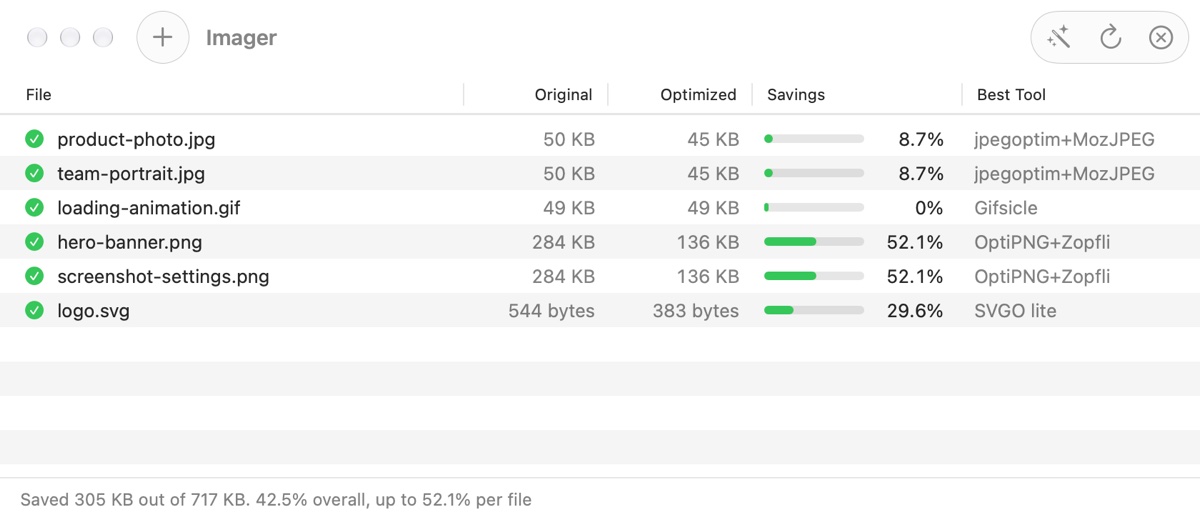
Eight optimizers, chosen per format: OptiPNG, AdvPNG, Zopfli, pngcrush and pngquant for PNG; jpegoptim and MozJPEG for JPEG; Gifsicle for GIF; SVGO for SVG. Imager runs them all and keeps whichever output is smallest.
Lossless by default
Pixels stay exactly as they are. Only invisible metadata is removed and the image data is recompressed, so it's safe to run on anything, as many times as you like.
Lossy when you want it
One click in the toolbar switches to lossy mode. Images above the quality you choose in Settings (80% by default) are re-encoded down to it, which is hard to tell from the original and often cuts files by two thirds or more.
Convert to AVIF
Pick a format in the toolbar and every dropped image is re-encoded as AVIF, HEIC, JPEG or PNG first, with the encoder built into macOS. AVIF files are often a tenth the size of a PNG and open in every current browser. HEIC, WebP, TIFF and BMP files can be dropped too.
Whole folders at once
Drop a folder and Imager finds every image inside it, however deep, and works through them in parallel on all your Mac's cores. A status bar keeps a running total of what you've saved.
Nothing is lost
Each file is replaced in place and the original goes to the Trash, so Revert brings it straight back. Preserve permissions, hard links and dates if you need to, and stop a batch any time and keep the gains so far.
Everywhere you need it
Drop files on the window or the Dock icon, open them from the Finder, or pick "Optimize with Imager" in the Finder's Services menu. Quick Look any file in the list with the space bar.
How it works
Three steps, all on your Mac.
Imager is a remake of ImageOptim for macOS 26 and later, built the same way: it's a front end for the best open-source image compressors, bundled inside the app so there is nothing else to install. There is no account, no upload and no server.
- Drop. Drag images or folders onto the window. Each file is identified by its contents, not its name, and planned for the tools that fit it.
- Optimize. The tools that change content run first (a lossy pass, metadata stripping); the pure recompressors then race in parallel, each starting from the smallest result so far. The list shows sizes shrinking live.
- Done. The smallest file replaces the original, which goes to the Trash. Files that are already as small as they can get are remembered, so re-dropping a folder is quick.
Install
Installing
Imager is distributed directly, not through the App Store. Updates arrive inside the app.
- Download the disk image and drag Imager into your Applications folder.
- Open the app. It's signed and notarized with Apple, so macOS opens it without any security warnings.
- Drop some images on the window and watch the sizes come down.
FAQ
Questions
Will my images look different?
Not in lossless mode, which is the default: the pixels are identical and only invisible data is removed. In lossy mode images above your chosen quality are re-encoded, which at the default 80% is very hard to see on photos and screenshots. Either way the original is in the Trash and Revert puts it back.
How much smaller do files get?
It depends on the file. PNGs exported from design tools and screenshots often shrink by a third to a half losslessly. JPEGs straight from a camera lose 5 to 15% losslessly, mostly metadata, and 60% or more in lossy mode. SVGs from editors drop by a third or more.
What about EXIF, color profiles and GPS data?
By default Imager strips metadata from PNGs and JPEGs, which is where a lot of the savings come from and also removes camera details and location data before you publish a photo. Both can be turned off in Settings › Quality. A JPEG that relies on its EXIF orientation flag will appear rotated once the flag is gone.
How is this related to ImageOptim?
ImageOptim, by Kornel Lesiński, is the app that made this way of working popular on the Mac, but it won't run on upcoming versions of macOS. Imager is a from-scratch remake in Swift for macOS 26 and later with the same approach and most of the same tools, plus an in-app SVGO that needs no Node.js install.
Can it convert images to AVIF?
Yes. Choose "Convert to AVIF" (or HEIC, JPEG or PNG) in the toolbar and every image you drop is re-encoded in that format at the quality set in Settings › Convert, then optimized. The converted file keeps the original's name with the new extension, and the original goes to the Trash so Revert still works. The encoder is Apple's own, built into macOS 26; AVIF is supported by Safari, Chrome, Firefox and Edge.
Does anything get uploaded?
No. The optimizers run as helper programs inside the app on your Mac. Imager has no account, no analytics and no network features apart from checking for its own updates.
Is it slow?
Most files take a second or two. Zopfli, the best PNG compressor, can take a minute on a very large PNG; turn it off or lower the effort level in Settings › Tools if speed matters more than the last few percent. A low-priority option keeps your Mac responsive during big batches.
Is it open source?
Yes. The whole app is MIT-licensed on GitHub, including the script that builds the bundled tools from their sources. The tools keep their own licenses. Issues and pull requests are welcome.